Show them the pour, not just the price.
Video Menu puts a short, silent, looping clip on any item on your storefront — the milk going into a flat white, a croissant being torn open — and lets you choose where it plays.
 Iced Coffee$4.75
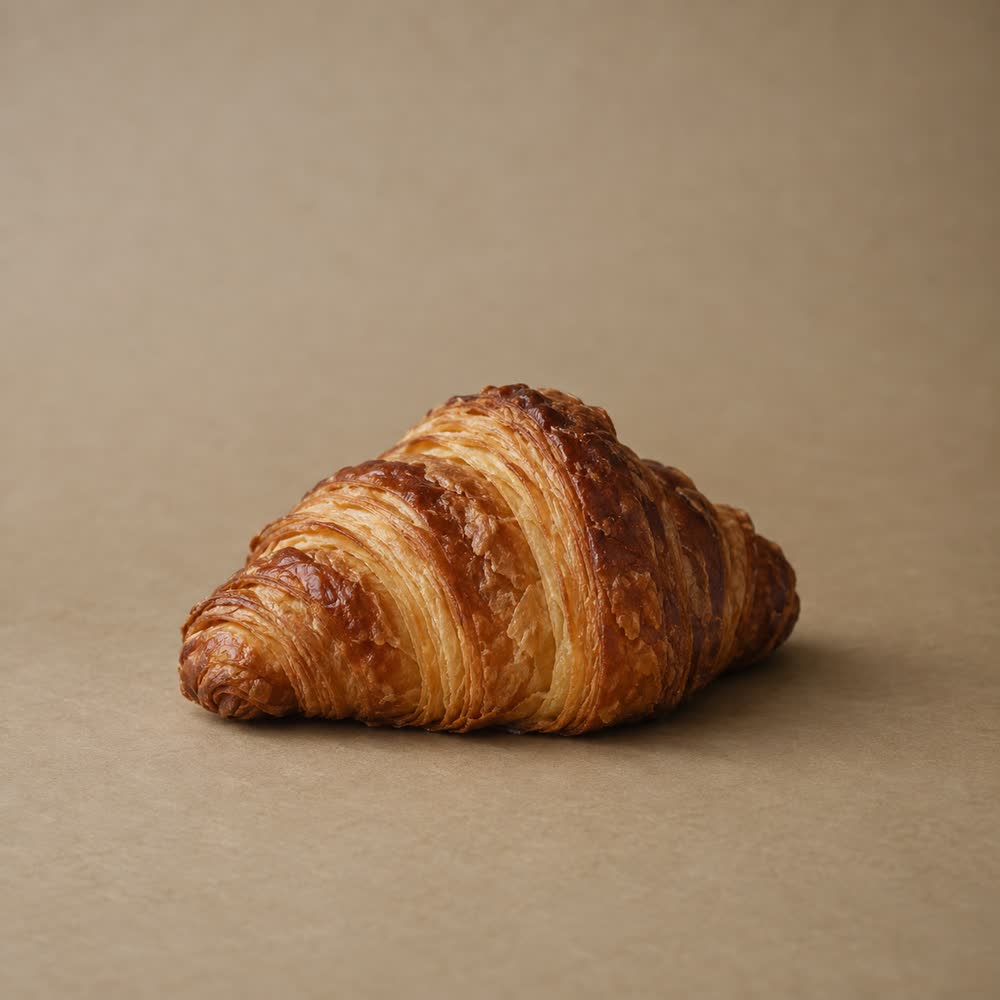 Butter Croissant$4.25
The photo, always — the clip waits for the item to be opened.
A photo shows what it is. A clip shows how it's made.
At the counter, customers watch the espresso run and the milk being steamed before they've paid. Ordering from a phone on the walk over, all of that is gone, and the menu is a list of names and prices. A few seconds of film puts the counter back.
Silent, looping, and placed where you choose.
01 / Browsing
It plays as they browse.
Set an item to Video first and its card plays the clip right there in the menu — silent, looping, and inline, so on a phone it stays in the menu rather than opening a player.
Or keep the menu still and let the clip wait. With Image, video on hover, the card shows its photo until someone points at it, or taps it — which on a phone also opens the item.

02 / The opened item
Or when they open it.
Open an item and its photos and clips sit in one strip the customer swipes through, with a count of how many there are and a Video label whenever a clip is showing, so nobody has to guess which one moves.
Choose whether that strip opens on the photo or on the clip. It's a separate choice from the card: a still in the menu and the clip once someone's interested, or the other way round.
Video1/3Filter coffee chilled and poured over ice.
Add to basket$4.7503 / Silent
Never a sound.
Every clip plays muted, loops, and has no player controls to fiddle with — the way a menu board would move if it could. Nobody's phone starts making noise in a queue.
In the basket and at checkout the item is shown as a still. A clip is for choosing, not for paying.
04 / Themes
Every theme, the same rules.
The choice is made once, on the item, and all seven themes — Virgil, Brine, Netsai, Shepard, Elmon, Olinda and Luna — read it the same way.
Change theme and your clips keep playing exactly where you put them.


05 / Adding a clip
Filmed on your phone, added in a minute.
Add a clip in the item's editor, beside its photos: MP4, WebM or MOV, up to 50 MB. The upload shows its progress, and one interrupted by a patchy connection carries on from where it stopped rather than starting again.
Add a clip to an item that has no photo yet and a still is taken from it as it uploads, so the item still has a picture for the basket.
06 / The library
One library, used anywhere.
Every clip you upload is kept in your Media Library, where you can filter to Video, In Use or Unused — so a clip filmed once can lead an item and a community post.
A clip that's still in use can't be deleted until it's taken off wherever it appears, so a menu never loses a video by accident.
Thought through, underneath
Your order kept.
Every location served.
How a clip finds its place without moving anything else, and travels with a shared menu.
Your order is kept.
Photos and clips stay in the order you put them. Video first brings the first clip to the front on that one surface, and leaves your order — and the other surface — alone.
Shared across locations.
With Linked Mode, a menu shared across your locations carries its clips with it. Film it once and every linked storefront plays it.
Questions
Speed, clips,
and what to film.
Will video slow my menu down?
Only what's set to play, plays. A card set to Image first or Image, video on hover loads its photo, and its clip only when someone asks for it; an item's clips load when the item is opened. Keep Video first for the handful of items that deserve it.
What makes a good clip?
A few seconds, filmed close, with one thing happening: a pour, a slice, steam lifting off a cup. It loops, so a clip that ends where it began plays as one continuous moment.
Does every item need one?
No. An item without a clip shows its photo everywhere, exactly as before, and its video settings wait until it has one.
Video Menu
Let them watch it
being made.
Film the pour once, and every customer who orders ahead gets to see it.
Start free — no card needed. Print your counter sign, put it beside the till, and see what happens.